
According to the report, Meta says advertisers can turn off Advantage+ features individually in Ads Manager at any time, but agency Exverus warns some options sit in collapsed menus and that if they aren’t all unticked by hand, the enhancements still apply. This guide gives a review routine that doesn’t depend on menu names that may change.
What we know and what we don't
PPC Land quotes Meta saying Advantage+ features can be turned off one by one. It also quotes Exverus, which warns: “If every one of those isn’t manually unchecked, the enhancements still apply”. In other words, one forgotten option is enough for the enhancement to stay on.
What the report doesn’t give is an exact menu path, which is why this guide doesn’t invent one. Ads Manager menus change often. What stays constant is the logic: go through each campaign, each ad set and each ad, and confirm the state of every creative and destination enhancement.
Step 1: inventory before touching anything
Start with a simple sheet with one row per active ad: campaign, ad set, ad, format type and visible AI features. Take a screenshot of the ad as published, seen from the user’s side, not just in the manager’s preview.
This inventory serves three purposes. It shows what exists, gives a reference to compare against later and creates proof of how the ad looked before any change. If something goes wrong, it’s the document that lets you explain what happened to whoever needs to know.
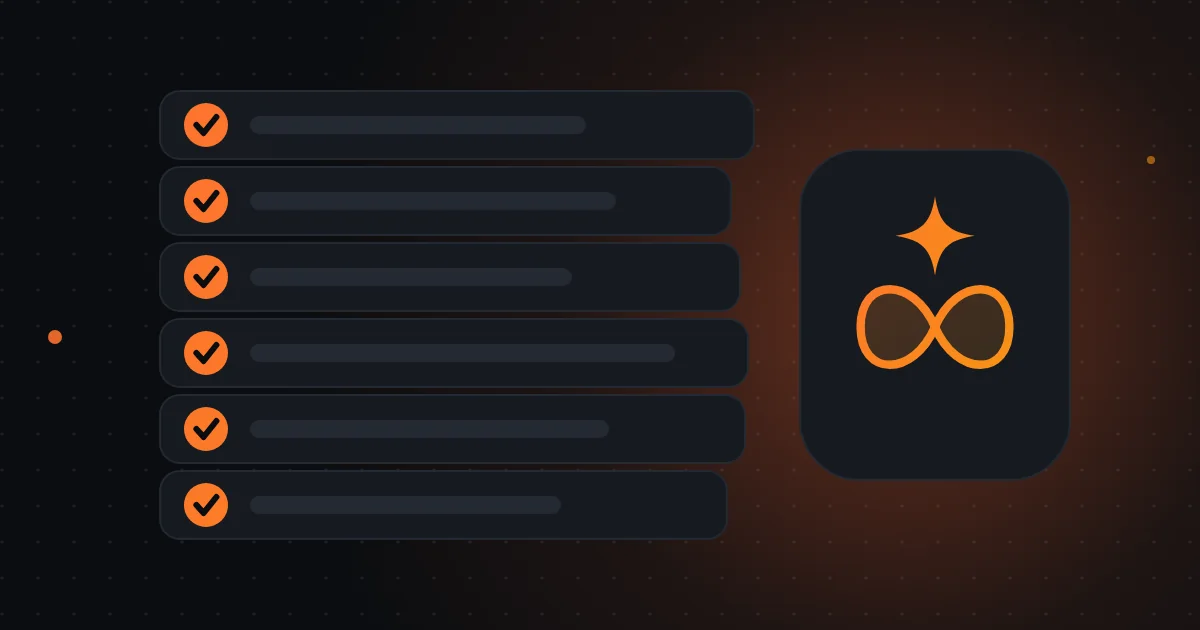
AI review for Meta ads
- Inventory of all active ads
- Screenshots of the current state
- Turn off enhancements one by one
- Check the published ad on your phone
- Record changes and dates
- Repeat every month
Step 2: turn off deliberately
In the Advantage+ creative and destination settings, switch off the enhancements you don’t want. The report mentions, for example, in-app product browsing, which is on by default in existing ads from 28 October and can be turned off before that date or ad by ad. There are also reports of sitelinks, translations and generated images that appeared without the advertiser having enabled them.
Turn off feature by feature and reopen the ad to confirm the change was saved. In large accounts, ask whoever manages them to do it in batches and leave a log of what was changed and when.
Step 3: check the published ad
After switching off, go and see the ad as a customer would: on your phone, on Facebook and Instagram, in the various formats. Compare with the reference screenshot. Look for different headlines, images you didn’t send, translations, extra links and unexpected carousels.
If you find differences, don’t ignore them. Record them, pause the ad if needed and recheck the settings. That’s exactly what Exverus did: it pulled live ads to remove changes it didn’t want.

One forgotten option in a collapsed menu is enough to keep the AI on.
Step 4: repeat regularly
Bookshop.org reported that an account update enrolled it in AI features. This suggests settings can change without any action from you. So the review is not a one-off event: do it for every new ad and at least once a month.
A good practice is to include the AI check in the weekly account review, next to tracking and search terms. Five minutes a week avoid weeks of ads with text or images nobody approved.
When not to turn off: testing with method
Turning everything off isn’t mandatory and isn’t always best. Meta claims ROAS gains from AI creative, which practitioners dispute. The answer is to test: duplicate an ad, turn AI on in one and leave the other without, with the same budget and audience, over the same period.
Assess by real cost per result, not clicks. If the AI version wins consistently and the text is acceptable, you can keep it, with human approval. If it loses or ties, the decision is simple: the ad you control stays.
How to explain to the rest of the team what changed
After adjusting settings, share a short note with the team: which features are off, which stay in testing, who approves ads and where the log is. Sales, customer support and management should know enough to recognise a “strange” ad and flag it.
A useful detail: ask whoever serves customers to tell you when questions arise about offers or prices they don’t recognise. Often that’s the first sign a published ad says something different from what was intended. Ads don’t live only on the platform; they also live in customers’ conversations.
A one-sentence summary to stick on the wall
No AI feature stays active in your ads unless someone has decided it, written it down and checked it in the published ad. It’s a simple rule that fits on a sticky note and saves many problems, before and after 30 October. Whoever follows it doesn’t need to memorise menus: they need habit and a record.
Frequently asked questions
Where is the option to turn off AI?
The report says Advantage+ features are turned off individually in Ads Manager and that product browsing is adjusted in the Advantage+ Creative and Destination settings. Exact menu names may change, so confirm in your account.
If I turn off AI, will my ads stop working?
The report gives no such indication. Meta claims AI improves results, but practitioners dispute it. The safe route is to test with and without AI in your account.
Can I ask my manager to do this?
Yes, and you should. Ask for the inventory, screenshots and change log. Whoever manages the account should be able to show what was active and what changed.